Using Nyan EU Desk
Review business information, policy links and consent evidence, then prepare changes for your store.
Review your store
- Open the installed app from Shopify admin. Select your business location and the EU markets you sell to.
- Enter your business details and paste a storefront page’s HTML, or use the fictional example to explore the workflow. With Starter access, Scan public pages can retrieve up to five publicly accessible pages.
- Run the review. Inspect each finding, its source and suggested next step. A matching link does not establish that its contents are correct.
- Export your findings for your team or adviser. Review other pages, languages and business-specific requirements separately.
Add business details to a draft theme
Required: an Online Store 2.0 theme with sections that support app blocks. Vintage themes cannot use these blocks; you can still use the manual review workspace. The app does not edit theme files or publish your theme for you.
- From the app, expand Apply a reviewed fix in Shopify and open your themes. Open an unpublished theme in the editor. The theme number appears between
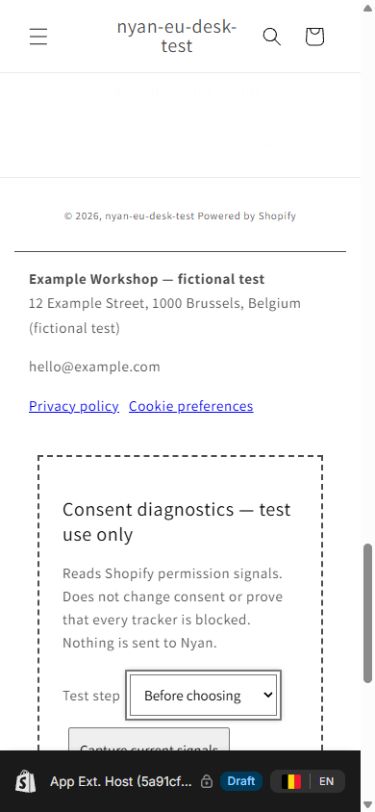
/themes/and/editorin the address; enter that number in the app. - Select Add business details. The link targets the home page and its footer section group. Alternatively, in that draft theme’s footer, choose Add section → Apps → Business details from Nyan EU Desk. If app sections are unavailable, use a compatible theme instead of pasting code into theme files.
- Open the Business details block. Enter your legal business name, geographic address and business email, then any applicable telephone, registration and VAT details. Check each value and turn on “I reviewed these details for publication.” Required fields or confirmation missing? The block stays hidden on the storefront.
- Move the block using its drag handle, or move its containing Apps section in the editor sidebar. Save, then use Preview. Check the text and links at desktop and mobile widths.
- A shared footer may appear on product, collection and other pages as well as the home page. Inspect those templates too; theme support and placement vary. Publishing the theme is a separate merchant decision.
Undo or troubleshoot a block
Open the existing block using Edit or undo an existing block. To hide business details, turn its confirmation switch off and Save. To remove it, select Remove block (or remove its dedicated Apps section) and Save. Re-enable confirmation to restore a hidden block. Avoid adding a duplicate when the existing one just needs editing.
If the editor reports that a block was not found, remove that stale block reference in the draft and add the current Nyan EU Desk block from Apps. If the footer is blank, check the three required fields and confirmation. If the theme has no app-block option, it is not supported by this integration. Preview before publishing any fix.
Review cookie choices
Configure Shopify’s customer privacy settings first. In the same draft theme, use Add test-only consent diagnostics or Footer → Add section → Apps → Consent diagnostics. Save and open the storefront Preview; use a fresh browser session for the initial state. Record the four labelled stages: before choosing, after rejecting, after accepting and after withdrawing. Use the real cookie controls for each choice, wait until they finish, select the matching Test step, then Capture current signals. Download the signal report and review it in Consent evidence.
API signals alone do not prove trackers are blocked. Check actual network requests, manually installed scripts, app pixels and granular choices for each target market. Remove the diagnostic block before publishing.
When a scan cannot read your store
Scanning collects text and links from up to five public pages. Scripts, styles and embedded media are left out. Each page has a 2 MB download limit and a 180 KB evidence limit; a page over either limit is left for manual review. The scan does not execute JavaScript or inspect checkout, and it cannot prove that text is visible or trackers are blocked.
A page can open in your browser yet refuse automated retrieval. Password protection, access restrictions, rate limits and temporary failures can prevent a scan. A 403 response means the request was refused; it does not mean your store is offline or has failed a legal check. Follow any displayed retry advice, or paste a page’s HTML into the free workspace. Keep your storefront protections in place.
Scanning samples the home page and standard privacy, refund, shipping and contact addresses. A page at a different address, text loaded by JavaScript, or content beyond the size limit needs manual review. A missing result does not prove that the information is absent from your store.
What the review covers
The app provides selected Belgian checks and an EU baseline. Review the Country coverage tab for the scope and sources relevant to your business. Findings support your review; they do not certify legal compliance or cover every obligation. Review page contents, target markets and business-specific requirements with an appropriate adviser when needed.
Support
Email nyanproducts@gmail.com with your shop domain, the action you tried and the error message. Do not send customer records, passwords or access tokens.